Here’s a detailed explanation:
What is the green dot?
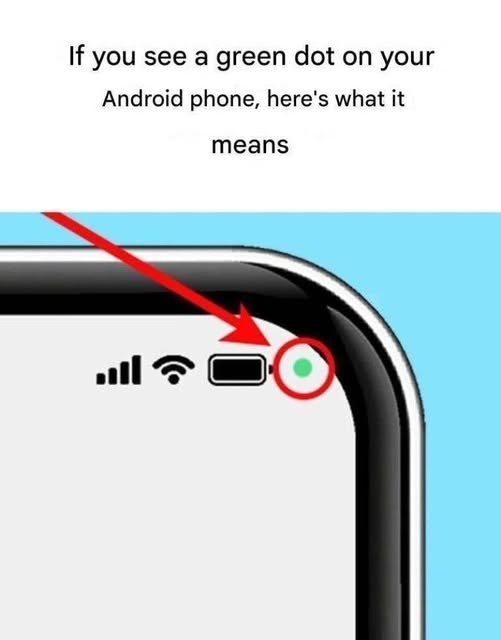
The green dot is a security feature introduced in Android 12 (and available on newer Android versions). It appears whenever an app accesses sensitive hardware like the camera or microphone.
For example:
- 📷 Opening the Camera app → Green dot appears.
- 🎥 Using WhatsApp video calls → Green dot appears.
- 🎤 Recording a voice note → Green dot appears.
- 📹 Using Instagram or Snapchat camera → Green dot appears.
Why was it added?
The feature helps protect your privacy by:
- Alerting you when an app is using your camera or microphone.
- Helping you detect apps that may be accessing these sensors without your knowledge.
- Giving you more control over your personal data.
How to check which app is using the camera or microphone
On most Android phones:
- Swipe down from the top of the screen to open the Quick Settings panel.
- Tap the green dot or the privacy indicator (if available).
- Android will show which app is currently using the camera, microphone, or both.
Some manufacturers (Samsung, Google Pixel, Xiaomi, OnePlus, etc.) display this information slightly differently, but the purpose is the same.
What if the green dot appears unexpectedly?
If the green dot appears when you’re not using the camera or microphone:
- Check which app is accessing the sensor.
- Close the app if it seems unnecessary.
- Review the app’s permissions:
- Go to Settings → Privacy → Permission Manager (or Settings → Apps → Permissions, depending on your phone).
- Check which apps have access to the Camera and Microphone.
- Revoke permissions from apps you don’t trust.
- Update your phone and apps to ensure you have the latest security fixes.
- If you suspect malicious activity, run a reputable mobile security scan or uninstall the suspicious app.
Can you turn it off?
On most Android devices, the privacy indicator itself cannot be disabled because it is part of Android’s security features. However, you can completely disable camera or microphone access for all apps using the Camera access and Microphone access toggles found in the Quick Settings panel or under Settings → Privacy.
Does every green dot mean someone is spying on you?
No. In most cases, the green dot simply indicates that an app you intentionally opened is using the camera or microphone. It only becomes a concern if it appears unexpectedly or remains on after you’ve closed the app that should be using those sensors.
Green dot vs. other Android privacy indicators
- Green dot: Camera, microphone, or both are in use.
- Green camera icon (on some devices): Camera is active.
- Green microphone icon (on some devices): Microphone is active.
Different Android manufacturers may display slightly different icons, but they all serve the same purpose: informing you when sensitive hardware is being accessed.
In short, the green dot is a built-in privacy feature designed to make camera and microphone use more transparent and help you quickly identify when apps are accessing these sensitive components.