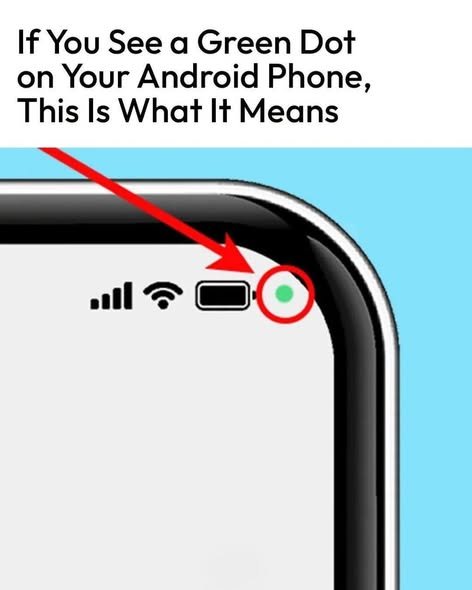
The green dot in the upper-right corner of an Android phone is a privacy indicator. It appears when an app is currently using your phone’s camera or microphone. It was introduced in Android 12 as part of Google’s privacy features to help users know when sensors are active.
What does the green dot mean?
- 🟢 Green dot = Camera or microphone is being accessed
- It may appear when:
- You open the Camera app
- You record a video
- You make a video call
- You use voice recording
- You use a voice assistant
- An app uses the microphone for voice features
The dot usually appears briefly near the status bar and may turn into a small green icon (depending on your Android version and phone brand).
How to find which app is using the camera or microphone
- When the green dot appears, swipe down from the top of the screen to open the notification panel.
- Look for a message such as:
- “Camera in use”
- “Microphone in use”
- “Camera and microphone in use”
- Tap the message or the green indicator to see which app is accessing the sensor.
On many Android phones:
- Open Settings
- Go to Privacy (or Security & Privacy)
- Tap Privacy Dashboard
- Choose Camera or Microphone
- Review which apps recently accessed them.
Is the green dot dangerous?
Not necessarily. The dot does not mean your phone is hacked. Many normal apps need camera or microphone access, such as:
- Video calling apps
- Social media apps
- Navigation apps with voice features
- Camera apps
- Messaging apps
However, if the dot appears when you are not using any feature that should need the camera or microphone, it is worth checking.
How to stop an app from using your camera or microphone
- Open Settings
- Tap Apps
- Select the app
- Tap Permissions
- Choose:
- Camera → Don’t allow
- Microphone → Don’t allow
You can also manage permissions globally:
Settings → Privacy → Permission Manager → Camera/Microphone
Can you disable the green dot?
On most Android phones, the privacy indicator cannot be permanently turned off because it is a built-in security feature. Some manufacturers may offer limited customization, but disabling it is generally not recommended because it removes an important warning.
Other colors or indicators
Depending on your Android version and device:
- 🟢 Green indicator: Camera or microphone is active
- 📍 Location icon: An app is using location services
- 🔵 Bluetooth indicator (on some devices): Bluetooth activity
- 🔴 Screen recording indicator (on some devices): Screen recording is active
Quick safety check if the dot appears unexpectedly
- Check the notification panel to identify the app.
- Close apps you are not using.
- Restart your phone.
- Update Android and apps.
- Remove camera/microphone permissions from apps that do not need them.
The green dot is mainly there to give you visibility and control over your phone’s privacy, so you can quickly see when sensitive sensors are being accessed.